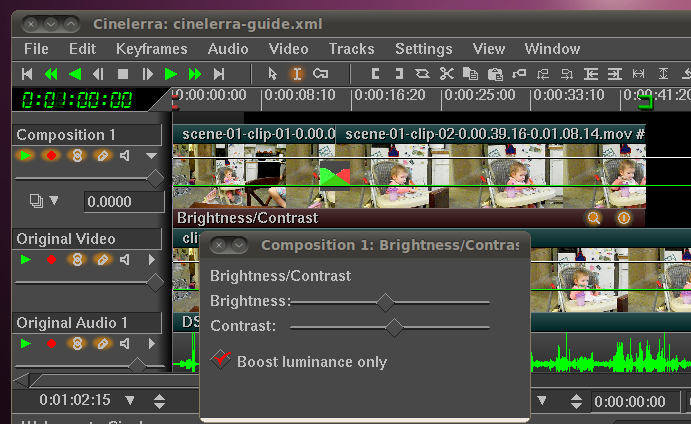
 Cinelerra’s video effects are probably its most powerful features. Set the In point at the beginning of your video and the Out point at the end of the track. Make sure the clips track is the only one armed
  . Disable keyframes by turning off the keyframes button
  . Set the In point to the beginning of the timeline and the Out point to the end of your clips. Now either right-click on the track and choose Attach effect or select Attach Effect from the Video menu. Find Brightness/Contrast and add it to the track. The effect is added to the timeline between the In/Out points.
Set Effect Parameters
The effect has an On button  which determines whether the effect is active or not. The effect also has a Show controls button
  which you should click now to set the effect’s parameters. Adjust the brightness and contrast, then close the effect’s controls.
Deinterlacing Video Effect
Many cameras record video that is interlaced. This causes the video to look somewhat jagged horizontally. If your video is interlaced, you can add the deinterlace video effect and it will straighten everything out for you.
Cinelerra Effects / Transitions